Sunday, March 23, 2014

SharePoint Environment Troubleshooting Tools

Tools used to troubleshoot environments......

  • PAL – templates, http://pal.codeplex.com/
  • ULS Viewer – http://archive.msdn.microsoft.com/ULSViewer  (MS)
  • SETH – SharePoint Engineer Troubleshooting Helper – provided by Microsoft Support. 
  • SNAP tool  - Exception Monitor - http://todd-carter.com/post/2012/05/05/Making-Debugging-a-SNAP/ (MS)
  • DebugDiag 2.0 - http://debugdiag.com -   crash dumps, exception dumps.
  • Delegconfig - Kerberos Issues - http://blogs.iis.net/brian-murphy-booth/archive/2009/04/22/delegconfig-v2-beta.aspx
  • Fiddler2 - Headers etc - http://www.telerik.com/fiddler
  • Logparser  – IIS Files - http://www.microsoft.com/en-gb/download/details.aspx?id=24659
  • Process Monitor 3.1 – http://technet.microsoft.com/en-gb/sysinternals/bb896645.aspx
  • Netmon 3.x + NMParsers + SharePoint Parsers 
  • SharePoint Administration and Clean-up Tool
  • iDNA/TTTrace.exe – for tracing any process - provided by Microsoft support
  • PSSDIAG – for SQL Server tracing - provided by Microsoft Support
  • Debugging Tools for Windows(Windbg.exe)

Standard Tools - PowerShell
  • PSConfig
  • NETSH
  • Developer Dashboard
  • SQL Profiler 
  • System.net

Wednesday, September 25, 2013

SharePoint 2010 - Update People Profiles Telephone Numbers With Powershell

A task was assigned to me to update 5000 telephone numbers in SharePoint..... easiest method to script and read from CSV - as so .....


Input file format (CSV) - Important note the headers have to be exactly whats in script

ntname,number
domain\smith,898021889
domain\brown,78798798

Script to read through and update WorkPhone 

#First load the SharePoint commands 
#add-PSSnapIn Microsoft.SharePoint.PowerShell

#Set up the job variables 
$csvfile="TelephoneNumbers.csv" 
$mySiteUrl = "<mysiteurl>
$upAttribute = "WorkPhone"

#Connect to User Profile Manager service 
$site = Get-SPSite $mySiteUrl 
$context = Get-SPServiceContext $site 
$profileManager = New-Object Microsoft.Office.Server.UserProfiles.UserProfileManager($context) 

#Create Lists from each item in CSV file 
$csvData = Import-Csv $csvfile 

#Now iterate through the list to update the attribute with new value 
foreach ($line in $csvData)

    #Check to see if user profile exists 
    if ($profileManager.UserExists($line.NTName)) 
        { 
            #Get user profile and change the value 
            $up = $profileManager.GetUserProfile($line.NTName) 
 #           $up[$upAttribute].Value = $line.PropertyVal 
  $up[$upAttribute].Value = $line.number
            $up.Commit() 
        } 
    else 
    { 
        write-host "Profile for user"$line.NTName "cannot be found" 
    } 


#Dispose of site object 
$site.Dispose()

SharePoint 2010 - Object Cache: The super user account utilized by the cache is not configured.

Following error is appearing as warning on Web front ends 

Object Cache: The super user account utilized by the cache is not configured. This can increase the number of cache misses, which causes the page requests to consume unneccesary system resources.
 To configure the account use the following command 'stsadm -o setproperty -propertyname portalsuperuseraccount -propertyvalue account -url webappurl'. The account should be any account that has Full Control access to the SharePoint databases but is not an application pool account.
 Additional Data:
 Current default super user account: SHAREPOINT\system

If you think that having object caching isn't going to cause an issue with content use the following to resolve

1. Verify that you have the following administrative credentials:
To create the user accounts in Central Administration, you must be a member of the Farm Administrators group on the computer that is running the SharePoint Central Administration Web site.
2. On the Central Administration Web site, in the Application Management section, click Manage web applications.
3. Click the name of the Web application that you want to configure.
4. On the Web Applications tab, in the Policy group, click User Policy.
5. In the Policy for Web Application window, click Add Users.
6. From the Zones list, select All zones, and then click Next.
7. In the Users box, type the user name for the Portal Super User account. - domain\spsuperuser
8. Click the Check Names icon to ensure that the account name can be resolved by the authentication providers on the application server.
9. In the Choose Permissions section, check the Full Control - Has full control box.
10. Click Finish.
11. Repeat Steps 5 through 8 for the Portal Super Reader account.
12. In the Choose Permissions section, check the Full Read - Has full read-only access box. - domain\spsuperreader
13. Click Finish.
14. Make note of how the names for the Object Cache Super Reader and Object Cache Super User accounts are displayed in the User Name column. The displayed strings will be different depending on whether you are using claims authentication for the Web application.

Powershell to run 

$wa = Get-SPWebApplication -Identity "<App Identity from IIS>"
$wa.Properties["portalsuperuseraccount"] = "domain\spsuperuser"
$wa.Properties["portalsuperreaderaccount"] = "doamin\spsuperreader"

$wa.Update()

And to rollback ....

$wa = Get-SPWebApplication “http://urlofthewebapplication”
$wa.Properties.Remove("portalsuperuseraccount")
$wa.Properties.Remove("portalsuperreaderaccount")

$wa.Update()


Powershell Script to Connect to Domain Controllers

We have been seeing some issues with our servers not being able to connect to DC's - to help diagnose the issues the following scripts were useful 

This gets all the DC's and pings

[System.DirectoryServices.ActiveDirectory.Domain]::GetCurrentDomain() | % { $_.DomainControllers } | %{Test-Connection $_.Name}

The next one-liner connects to each of the DC's on 389

[System.DirectoryServices.ActiveDirectory.Domain]::GetCurrentDomain() | % { $_.DomainControllers } | %{$o=new-object Net.Sockets.TcpClient;$o.Connect( $_.IPAddress, 389); new-object PSObject -Property @{name=$_.Name;connected=$o.Connected}}

Wednesday, January 30, 2013

SharePoint 2007 - stsadm error


After trying to restore a site collection from another environment I received the following error :


No content databases are available for this operation. Create a content database, and then try the operation again. To create a content database, click "Content databases" on the Application Management page, select the Web application to use, and then click "Add a content database".

Check CA and all was as expected, content DB's online.

I realised that the site collection had actually been restored before, even though it has a new name it had the same GUID within SharePoint and therefore needed to be on a new contentDB.


Wednesday, October 31, 2012

SharePoint 2007 "Code blocks are not allowed in this file" after saving a file from Word

Received the error after trying to save to a SharePoint document library via Word.
The method I used to resolve was to 

Go to Site Actions -> Site Settings.Click the "Reset to site definition" link.
The type in the link that is not working "Latest Documents/Forms/AllItems.aspx" and just reset this library 
This was fine for me as I didn't have any customizations as they will be reset.

Tuesday, August 28, 2012

SharePoint 2010 - Exception: Invalid object name 'Webs'.

After running SP 2010 Cumulative update package and attempting Wizard I ran into the following error on a development box

Exception: Invalid object name 'Webs'.


Not very clear error .... but after looking in the Upgrade.log I found the following error pointing to a ContentDB


[DEBUG] [8/24/2012 7:01:02 PM]: Retrieving site definition for language 1033...
[OWSTIMER] [SPUpgradeSession] [ERROR] [8/24/2012 7:01:02 PM]: Upgrade [SPContentDatabase Name=WSS_Content] failed.
[OWSTIMER] [SPUpgradeSession] [ERROR] [8/24/2012 7:01:02 PM]: Exception: Invalid object name 'Webs'.
[OWSTIMER] [SPUpgradeSession] [ERROR] [8/24/2012 7:01:02 PM]:    at System.Data.SqlClient.SqlConnection.OnError(SqlException exception, Boolean breakConnection)
   at System.Data.SqlClient.TdsParser.ThrowExceptionAndWarning(TdsParserStateObject stateObj)
   at System.Data.SqlClient.TdsParser.Run(RunBehavior runBehavior, SqlCommand cmdHandler, SqlDataReader dataStream, BulkCopySimpleResultSet bulkCopyHandler, TdsParserStateObject stateObj)
   at System.Data.SqlClient.SqlDataReader.ConsumeMetaData()

Armed with this information I checked the content DB in question using SQL loads of tables/stored procedures were missing - see pictures below

Other Tables contained many more as below


As this was a development box I was able to remove the  web application and content DB - re-ran the upgrade wizard and all was good. 


Wednesday, March 28, 2012

SharePoint 2007 - Update multiple Site Collections quota values

Out of the box SharePoint 2007 does not offer an automated way to modify existing site collections with a quota value. For example if you have a quota "Extranet" with a size limit of 3GB that's been applied to 1000 sites currently there is no method to update this value on batch


However using the "SharePoint Administration Toolkit" you can run the following command


The following would update all the sites using the quota extranet with the new value


  • stsadm –o updatequota –quotaname Extranet

The following would update all the sites using the quota extranet with the new value but only that are contained in WSS_Content_001 


  • stsadm –o updatequota –quotaname Extranet -contentdb WSS_Content_001

For more examples follow this link 
http://technet.microsoft.com/en-us/library/ee449569(office.12).aspx


Saturday, March 10, 2012

SharePoint - Script to copy a files to SharePoint Library


Recently I was asked to automate a file copy from windows (UNC) into a SharePoint directory.  There are limitations with this especially with windows 7 and Server 2008 but luckily my requirement was from a Windows 2003 server to SharePoint 2010. You need to make sure you can view the "Explorer View" for this to work.


I used this simple DOS script, utilising  PUSHD (connects a the last free network drive) and POPD (release network drive).


rem $echo off
rem ************
set REPORT="d:\Sharepointcopy\InsiteSharepoint2010.log"
echo %date% %time% >> %REPORT%
pushd "\\contoso.com\Documents" >> %REPORT%
copy d:\*.xml /Y z:\ >> %REPORT%
popd 
echo %date% %time% >> %REPORT%
echo *Finished*>> %REPORT%


Friday, March 2, 2012

SharePoint 2010 - Powershell Installation Script

Following is a script I used for install 2010 onto farm - really simple - installs SharePoint 2010 , goes thorough initial wizard sets up CA on port 2222, installs basic features and services and then disables loopback.
Before running update the parameters in red


# Execute setup.exe with the setupfarmsilent xml to install SharePoint
#Write-Host "Installing SharePoint 2010 Quietly"
#& ‘C:\install\sp2010i\setup.exe’ ‘/config’ ‘C:\install\config.xml’ | out-null
# Include the SharePoint cmdlets
Write-Host "Loading SharePoint 2010 PowerShell cmdlets"
Add-PsSnapin Microsoft.SharePoint.PowerShell
# Set the farm variables
Write-Host "Setting SharePoint 2010 Farm variables"
$sp_cfdatabasename = "SP2010_Config"
$sp_cadatabasename = "SP2010_Admin_Content"
$sp_databaseserver = "<add databaseserver>"
$sp_passphrase = (ConvertTo-SecureString "<add passphrase>" -AsPlainText -force)
$sp_password = (ConvertTo-SecureString "<add password>" -AsPlainText -force)
$sp_username = "<add username>"


# Clean up the credentials
$sp_credentials = New-Object System.Management.Automation.PsCredential $sp_username,$sp_password
# Execute the config wizard
Write-Host "Add configuration and administration databases"
New-SPConfigurationDatabase -DatabaseName $sp_cfdatabasename -DatabaseServer $sp_databaseserver -AdministrationContentDatabaseName $sp_cadatabasename -Passphrase $sp_passphrase -FarmCredentials $sp_credentials
# Provision a Central Administration Site
Write-Host "Add Central Administration"
New-SPCentralAdministration -Port 2222 -WindowsAuthProvider "NTLM"
# Install all of the help files within Central Admin
Write-Host "Installation of Help files"
Install-SPApplicationContent
# Secure the files and registry entries on the server 
Write-Host "Resource security"
Initialize-SPResourceSecurity
# to install the features on the server. 
Write-Host "Installation of features"
Install-SPFeature -AllExistingFeatures
# to install and and then provision the services onto the farm.
Install-SPService
# Disable the loopback check, run this command from PowerShell.
Write-Host "DisableLoopbackCheck registry key"
New-ItemProperty HKLM:\System\CurrentControlSet\Control\Lsa -Name "DisableLoopbackCheck"  -value "1" -PropertyType dword
Write-Host "Installation script is complete"

Wednesday, February 22, 2012

SharePoint 2010 - DEV box increase available space by shrinking SQL data

On a 2010 development server space can become short especially with large profile imports and search indexes - one way to assist in gaining some space is to adjust a few settings on SQL Server - please note this should only be done on DEV/Test as can cause index fragmentation and therefore slow performance and also can impact backup recovery.

Follow these steps within SQL  - Firstly amend recovery mode (this reduces log files)

  1. Find the databases that are large and taking up the space - in my case this is on my my DEV server.
  2. Connect to SQL Object explorer and connect to instance
  3. Right click on the database that is large - in my case ProfileDB - click Properties and Options and ensure the Recovery mode is set to "Simple" - see screenshot


The 2nd step is too Shrink databases - this will  recover space by moving data from the end of a file to unoccupied space closer to the front of the file.

  1. Use the steps in the following link to carry out this simple task - http://msdn.microsoft.com/en-us/library/ms189035.aspx - 


Windows Server - Check Ports

To quickly check the ports open on a server run the following from a DOS prompt


netstat -an |find /i "listening" > c:\ports.txt


Or to check an individual port use telnet


telnet <servername> <port>


example - telnet contososmtp.com 83

Monday, February 13, 2012

SharePoint 2007 - Configuration must be performed in order for this product to operate properly

Received this error when trying to upgrade a 2007 farm from 12.0.06545 to 12.0.06565 on a test environment.


I had run all patches on the farm both WSS and MOSS and could not see why the configuration wizard would not complete - my first reaction was to try re-installing patches but all stated "Already Installed".


I then checked the servers in farm via CA and saw the following - see version numbers


From the screen shot you can see the versions are not displaying correctly and this was causing the wizard to fail, even though all had been installed !!


After a few reboots, IIS resets I realised that the issue was the timer job on the offending server was not running (not on purpose). As soon as this was started the version upgraded and wizard run correctly.

Thursday, February 9, 2012

SharePoint 2007 - Errors after patch deployment

Recently we started seeing the following errors appearing in our SharePoint 2007 environment and sites not able to be created.:


  • The element 'FormTemplatesList' of type 'ListInstance' for feature 'IPFSWebFeatures' (id: a0e5a010-1329-49d4-9e09-f280cdbed37d) threw an exception during activation: Operation aborted (Exception from HRESULT: 0x80004004 (E_ABORT))
  • Failed to activate template-associated site-collection-scoped features for template 'STS#0' in site
  • Failed to apply template "STS#0" to web at URL 
  • Feature Activation: Failed to ensure feature dependencies for feature 'PublishingSite
  • Feature Activation: Failed to ensure feature dependencies for feature 'PremiumSite'


In our environment  by mistake one of the servers in the farm had a latest patch downloaded to it - in this case 12.0.0.6565 - and the rest of the servers were on 12.0.0.6545. However we were not aware the patch had been deployed to the above errors were the only indication something had changed in the farm as via CA it still displayed the old version number.


Out first thought was to run the wizard on the affected servers which proceeded in upgrading the server to the patch and then also all the content databases in the farm .... not ideal and against all Microsoft best practices. Once we realised there was no way to roll back we upgraded the rest of the farm and the errors above disappeared.


Its seems the errors were around mismatches in dlls 


Thursday, February 2, 2012

SharePoint 2010 - Developer Dashboard


Great tool for troubleshooting SharePoint 2010 page performance - you can easily capture bad performing web parts and page loads. Even grab a correlation id that can be traced back to ULS logs. To turn on 


STSADM:
Mode ON
STSADM –o setproperty –pn developer-dashboard –pv On
Mode OFF
STSADM –o setproperty –pn developer-dashboard –pv Off
Mode ONDEMAND
STSADM –o setproperty –pn developer-dashboard –pv OnDemand
                      
PowerShell:
$DevDashboardSettings = [Microsoft.SharePoint.Administration.SPWebService]::ContentService.DeveloperDashboardSettings;
$DevDashboardSettings.DisplayLevel = 'OnDemand';
$DevDashboardSettings.RequiredPermissions = 'EmptyMask';
$DevDashboardSettings.TraceEnabled = $true;
$DevDashboardsettings.Update() 


I use the OnDemand mode, SharePoint displays a small icon beside the Welcome web part. 


Clicking this icon will open the Developer Dashboard at the base of the page and show timings etc

Wednesday, February 1, 2012

SharePoint 2007 Locked Documents

SharePoint Locked Documents


This document contains three potential problems that can occur on SharePoint with locked/checked out documents.  The below will help a reader to recognize and resolve these issues.

Index


Identifying the problems
Fixing the issues
Recovering lost Information/document
Understanding the issue

Identifying the problems


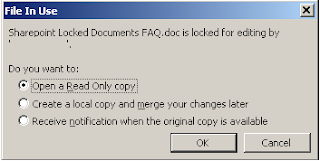
1) A user reports that they cannot edit a SharePoint document as it is locked.  They receive the “File In Use” popup when trying to edit the document.
At some point in time, you will run into the DocumentName is locked for editing by ‘Username’ message when working with SharePoint. Most of the time, this is a very valid message and is notifying the user that someone else is already editing the document.

    Figure 1
 
2) A user reports that they cannot edit a SharePoint document as it is locked, and it is their username that has it locked.
This situation most commonly occurs under the following scenarios:
·         The Microsoft Office product crashes while you were working on the document
·         Computer freezes or crashes while document is open
·         Lost of network connectivity while document is open
3) A user is on holiday or has left Bromley employment and they have some documents checked out (locked). As such users are unable to edit these documents which are checked out.
When trying to edit a document you receive the message reported in “Figure 1”.  The user who has locked/checked-out the document is on holiday or left the company.

Fixing the issues


1) Issue one is a valid message from SharePoint which informs the user that someone else had the document open for editing. 

2) Issue two happens when SharePoint has not received an updated from the client computer that the document has been closed.  To resolve this issue please follow the steps below to reset the lock on the document.

  • If the user has lost information or can not find the document please first follow the “Recovering lost Information/document” section of this document”.
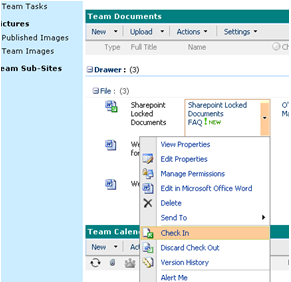
  • Navigate to the document which you are unable to edit, and then check the document back in using the menu in SharePoint as below.  If you are unable to check in the document select the “Discard Check Out” option, and click OK.


  • Move all files from the location below to a temporary folder, wait 10 minutes, then restart the P.C.

“C:\Documents and Settings\<UserName>\Local Settings\Temporary Internet Files\Content.MSO”


  • Once the P.C. has been restarted the file will be accessible for editing on SharePoint.
  • Request confirmation from the user that the document is accessible and up to date.  If the document is accessible and up to date remove the temporary folder you created.   If the document is not up to date please follow the steps outlined in “Recovering lost Information/document”

3) With Issue three, report this to the SharePoint administrator as they will have to take ownership of the documents and then check them into SharePoint.

Recovering lost Information/document


If word has terminated unexpectedly when editing a SharePoint document, or the network became unavailable and the user has lost work you can attempt to recover this information from three places on the users P.C.

  • Navigate to the hidden folder below.

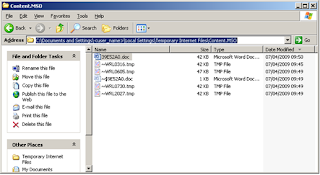
    “C:\Documents and Settings\<UserName>\Local Settings\Temporary Internet Files\Content.MSO”

    This folder should contain the last saved changes.  The document will not have the same name but will be a .doc file extension as below.  Also there should not be a lot of files in this folder as it is cleared out once the file is correctly checked-in to SharePoint.

  • Draft documents are also saved in M:\SharePoint Drafts.  When a document is checked out, it is saved in the user's My Documents folder in a subfolder named "SharePoint Drafts." As long as the document is checked out, the user can only save edits to this local folder. When the user is ready to check the document in, the document is saved back to the original server location. 
  • Microsoft Word also has an auto recovery folder for which can be checked for office documents that have not been saved correctly.  The default location of this folder is

    C:\Documents and Settings\<user_name>\Application Data\Microsoft\<office application i.e. word>. 
The document may never have been saved and so may not have title. This will make it hard to identify, but again there should not be lots of files in this location.  Use the detailed view for the most recently created documents to help identify the correct file.


Understanding the issue

When you edit a document, SharePoint registers that you have this document open for editing.  Word launches and informs SharePoint that you have the document open for editing.  A copy of the document that you have opened is placed into a hidden folder in your temporary internet files
C:\Documents and Settings\UserName\Local Settings\Temporary Internet Files\Content.MSO
Once every 3 minutes or so, the Office product will check back in with SharePoint letting it know that it is still open by you, after 10 minutes without office checking back the soft lock will be removed (soft lock is a document that is being edited but not checked out, checked out is a hard lock). Once the document is saved, closed and checked-in the content.MSO folder be removed and office will let SharePoint know that the document is now available to other users. 
If the document has not been saved closed and checked back into SharePoint and another user tries to access this document they will receive the message reported in “figure 1”.  This is a normal function of SharePoint informing users that someone has the document open and is editing it.
On some occasions you will receive the locked for editing message with your name there and no matter what you attempt to do you cannot get rid of the message (closing / reopening the document or restarting your computer does nothing to help rectify this).
This situation most commonly occurs under the following scenarios:
·         The Microsoft Office product crashes while you were working on the document
·         Computer freezes or crashes while document is open
·         Lost of network connectivity while document is open
Further information:

SharePoint 2010 - FIM Key


FIM Synchronization Service encryption key

In the case the of DR or a complete rebuild of a SharePoint 2010 environment it is very important that you back the up the FIM key on initial install of the environment. Without this on a rebuild you will NOT be able to re- start the user profile service.

To export the key:
  1. From command prompt go to Program Files%\Microsoft Office Servers\14.0\Synchronization Service\Bin
  2. Type miiskmu.exe /e D:\<path>\FIM_Key
  3. This will backup the key to a directory - then and this is also important copy this off to another location just in case of OS failure.
  4. the user name and password are the credentials for the farm administrator.
     

  1. To import the encryption key, say on rebuild - complete these steps:
  2. Use farm admin to log on to the computer that contains the new User Profile Service service application database.
  3. Ensure the  User Profile Synchronization service has a status of the service is Stopped.
  4. Open the Command Prompt window, and then change to the following folder:

    %Program Files%\Microsoft Office Servers\14.0\Synchronization Service\Bin\
  5. Type the following command, and then press Enter:

    miiskmu.exe /i  D:\<path>\FIM_Key

    Where <Path> is the full path of the file to which you exported the key.
The following like is slightly less clear - 
http://technet.microsoft.com/en-us/library/ff806338.aspx

Tuesday, January 31, 2012

Sharepoint 2010 Application Pool GUID

Having problems finding out which application pool is for which service in Sharepoint 2010 all you get is the GUID.  Well Run the below Powershell script to obtain application Pool information.

Get-SPServiceApplicationPool | select Id, Name, ProcessAccountName |ft

It is displayed as below

<><>
IdNameProcessAccountName
508h3s656-hdrf-gs45-afse5-ffhgrrddgffg7567MetaDataServiceAppPoolDomain\service account name
fdfkh56-3454g-34ds-ffdkr-vclkjtj304954SecurityTokenServiceApplicationPoolDomain\service account name
xgt62r-1dr3-2345-sdf3-dfdgfrgfd454SharePoint Web Services SystemDomain\service account name
dfetbr65576-fgt64f-fr565-xdrgff3-dfrt56ntgrUserProfilePoolDomain\service account name

Sharepoint 2010 Best Bets Import

Is your Business Analyst, and business unit going mad over best bets slowly editing them to get ready for go-live, have hundreds to import into Sharepoint 2010, we used the below CSV layout and Powershell script to import Best Bets.  This will keep them happy for a while and get them off your back ;) I obtained this from this great post http://get-spscripts.com/2010/10/create-search-keywords-and-best-bets.html

CSV column layout below
Keyword,Definition,Synonyms,BestBet1,Description1,Url1,BestBet2,Description2,Url2,BestBet3,Description3,Url3

Powershell Script to import CSV file 
function Import-SearchKeywords ($SiteUrl, $CSVFilePath, [switch]$RemoveOldKeywords)
{
$ssap = Get-SPEnterpriseSearchServiceApplicationProxy -Identity “Search Service Application2″
$keywords = New-Object Microsoft.Office.Server.Search.Administration.Keywords($ssap, $SiteUrl)
$allKeywords = $keywords.AllKeywords
$date =
Get-Date
#Remove all previous keywords from the site collection if chosen


if($RemoveOldKeywords) {
$keywordsArray = @()
$allKeywords | ForEach-Object {
$keywordsArray = $keywordsArray + $_.Term
}
$keywordsArray | ForEach-Object {
write-host “Deleting keyword:”$_
$allKeywords[$_].Delete()
}
}
#Import CSV file
$csvData = Import-Csv $CSVFilePath | ForEach-Object {
#Create keyword
write-host “Importing keyword:”$_.Keyword
$keyword = $allKeywords.Create($_.Keyword, $date.AddHours(-1))
$keyword.Definition = $_.Definition
#Create synonyms
$synonymArray = @()
$synonymArray = $_.Synonyms.Split(“;”)
$synonymArray | ForEach-Object {
write-host “Creating synonym”$_ “for keyword” $keyword.Term
$keyword.Synonyms.Create($_)
}
#Create best bets
$bestBetColumnNumber = 1
$bestBetColumn = “BestBet” + $bestBetColumnNumber
$descriptionColumn = “Description” + $bestBetColumnNumber
$urlColumn = “Url” + $bestBetColumnNumber
while ($_.$bestBetColumn) {
write-host “Creating best bet”$_.$bestBetColumn “for keyword” $keyword.Term
$keyword.BestBets.Create($_.$bestBetColumn, $_.$descriptionColumn, $_.$urlColumn)
$bestBetColumnNumber = $bestBetColumnNumber + 1
$bestBetColumn = “BestBet” + $bestBetColumnNumber
$descriptionColumn = “Description” + $bestBetColumnNumber
$urlColumn = “Url” + $bestBetColumnNumber
}
#Update keyword with best bets
$keyword.Update()
}
}
Import-SearchKeywords –SiteUrl <enter site url> –CSVFilePath C:\BestBet.txt -RemoveOldKeywords

Need a list of All Sharepoint 2010 Database Names

Use the below script to list all the sharepoint 2010 Database names.  I used this to help me set up mirroring, as you will need a powershell script and the database name to set the database as a Mirror in Sharepoint 2010.


List Sharepoint Databases
Get-SPDatabase | Sort-Object disksizerequired -desc | Format-Table Name